The TV has long been a radio too. With SoundNode, you listen to stations from around the world on the big screen, control everything with the remote or simply send the station over from your phone. Here you can see which way suits your device and how to get started in just a few minutes.
20 M.
listen to online audio on Smart TV
13.6 M.
listen to web radio there
59,8 %
they start it via an app on the TV
18,5 %
transfer it from the phone or tablet
People aged 14 and over in Germany; multiple answers were possible for the percentage values. Source: Online-Audio-Monitor 2026.
Which path suits you?
- Fire TV: Download SoundNode from the Amazon Appstore. The app is completely free there, without ads and without a purchase.
- Google TV and Android TV: Install SoundNode directly on your TV via Google Play.
- Chromecast: Start the station in the app on your Android phone or iPhone and send it to your Chromecast or to a TV with built-in Chromecast.
Listening to radio with the remote control
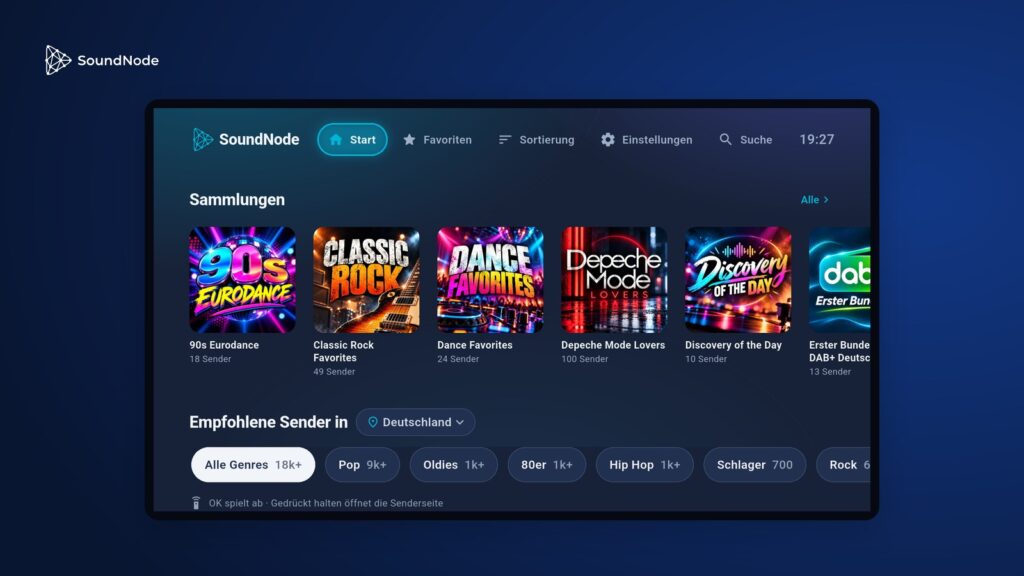
On the TV, SoundNode shows its own dark interface with large station logos. At the top you will find Home, Favorites, Sorting, Settings and Search. While a station is playing, the current track is shown at the bottom.
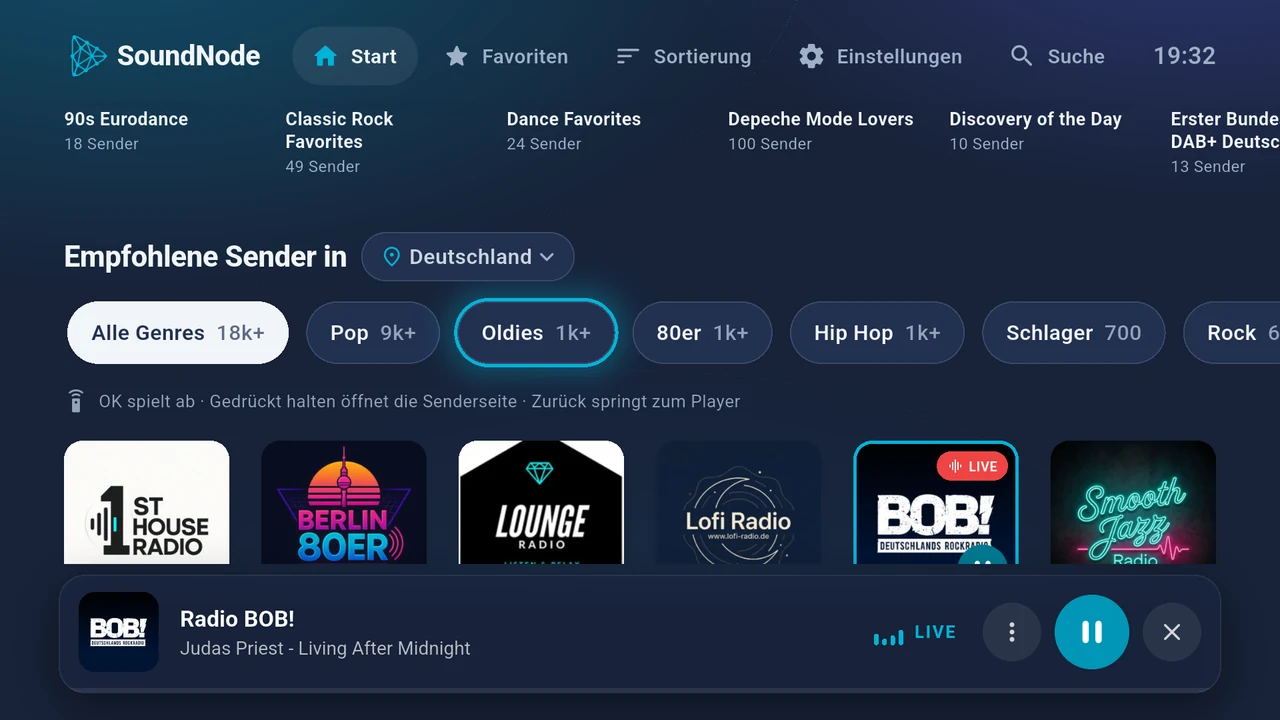
- OK button: Starts the station on the selected tile immediately.
- Press and hold OK: Opens the station page with its description and similar stations.
- Back button: Jumps straight to the player from the station list.
- Play button: Pauses and resumes playback.
Transfer your favourites from your phone
Don’t bother typing on the TV: open the settings and choose “Sign in with phone”. Scan the QR code with your phone, or enter the displayed code at soundnode.de/tv and sign in. Your favourites and settings will then be on your TV too.
Photos instead of a black screen
After two minutes without a key press, the screensaver starts. It shows large photos, while station, track and time remain visible. This way the radio keeps playing, and there is something to see on the TV.
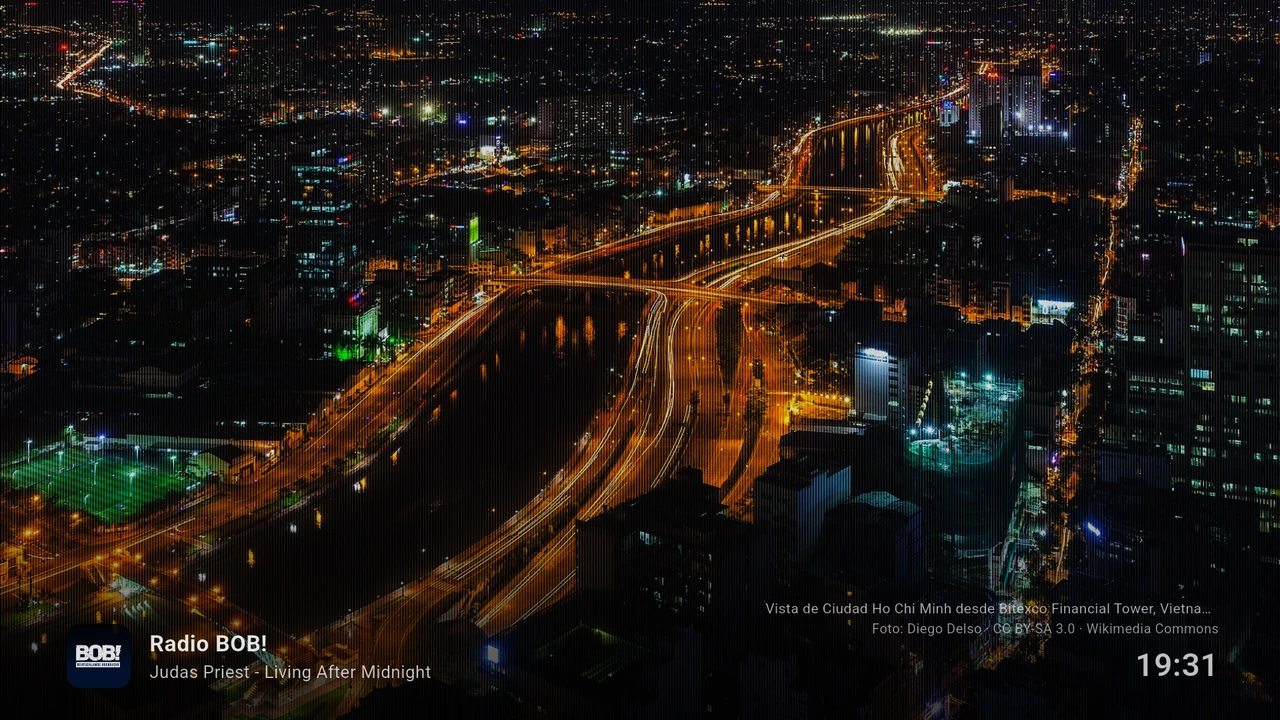
In the settings, under “Screensaver”, you choose what you want to see: mountains and lakes, cities, lights and stars at night, coast and sea, forest, or images from SoundNode. The picture changes every 30 seconds, every minute or every five minutes.
From phone to TV via Chromecast
- Connect your phone and Chromecast to the same Wi-Fi network.
- Start a station or a podcast episode in the SoundNode app.
- Tap “Chromecast” in the player and select your device.
After that, the TV fetches the stream itself, and your phone stays free for other things. Chromecast is one of the premium features of the apps from Google Play and the App Store. Premium is a one-time purchase, not a subscription. With a short advertising video, you can also unlock the feature for 24 hours.
Sources
- Online Audio Monitor 2026: Key Facts (PDF) and Report (PDF), page 78