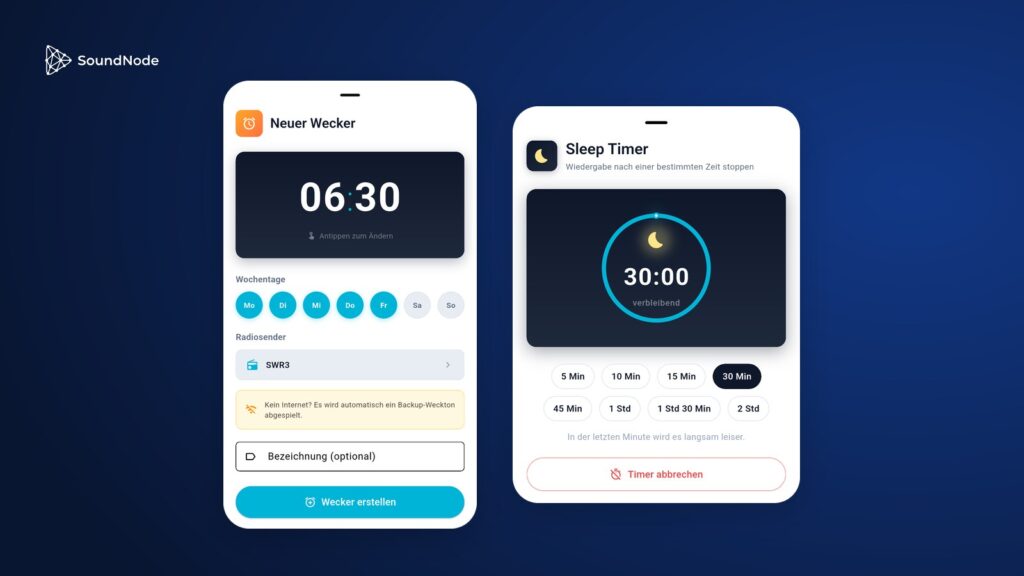
For many people, radio is part of the morning: according to the Audioversum 2026 by ARD Media, linear radio reaches around 28 percent of people aged 14 and over between 8 and 9 a.m., more than at any other hour. In the SoundNode app, your favourite station can wake you up, and in the evening the sleep timer switches it off automatically. Both are free and quick to set up.
How to set up the radio alarm clock
- Choosing a station: Open the station’s page and tap “Wake up with this station” at the bottom. You can also do this in the player menu and by pressing and holding a station tile.
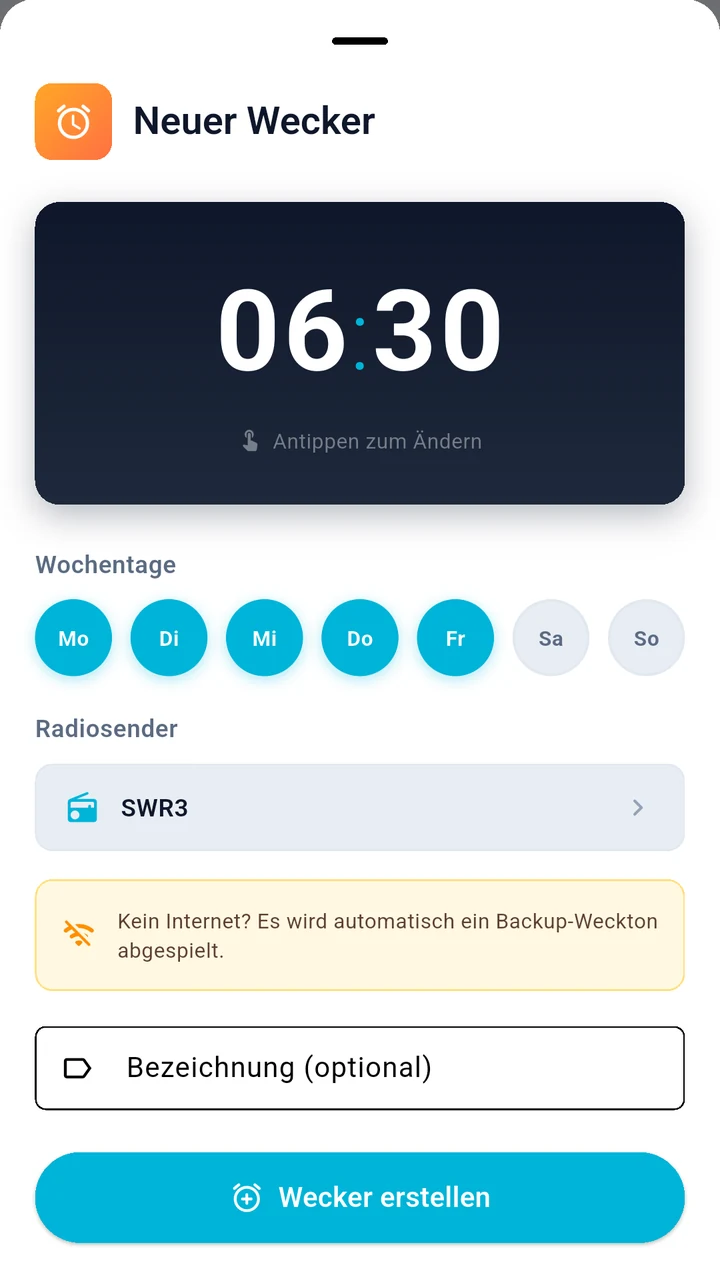
- Set the time: Tap the large time display and choose your wake-up time.
- Choose weekdays: Monday to Friday are preselected. Tap a day to turn it on or off.
- Save: If you like, give the alarm a name and tap “Create alarm”.
You can create several alarms. You will find them under “Radio alarms” in the settings: there you can switch each one on or off individually, open it with a tap and delete it with a swipe to the left.
What happens at wake-up time
- The station starts by itself: At the alarm time, the app starts your station, even with the screen locked. Until it can be heard, it gently fades in an alarm tone.
- The backup alarm tone takes over: If you have no internet, the station is currently unreachable, or you are on mobile data with “Stream only on Wi-Fi” enabled, the alarm tone keeps playing until you stop it in the app or in the notification, for up to ten minutes at most.
- Loud enough to wake you: On Android, the app raises an almost silent media volume to wake you.
- It repeats: The alarm rings on the selected days every week. If you only need it once, switch it off in the list afterwards.
Your alarm is ready to go
- Android: On first launch, the system asks whether the app may run in the background. Allow this. You can also find it in the app settings under “Battery usage”.
- iPhone: Leave the app open in the background and set the volume appropriately before going to sleep.
The sleep timer: listen to radio and fall asleep
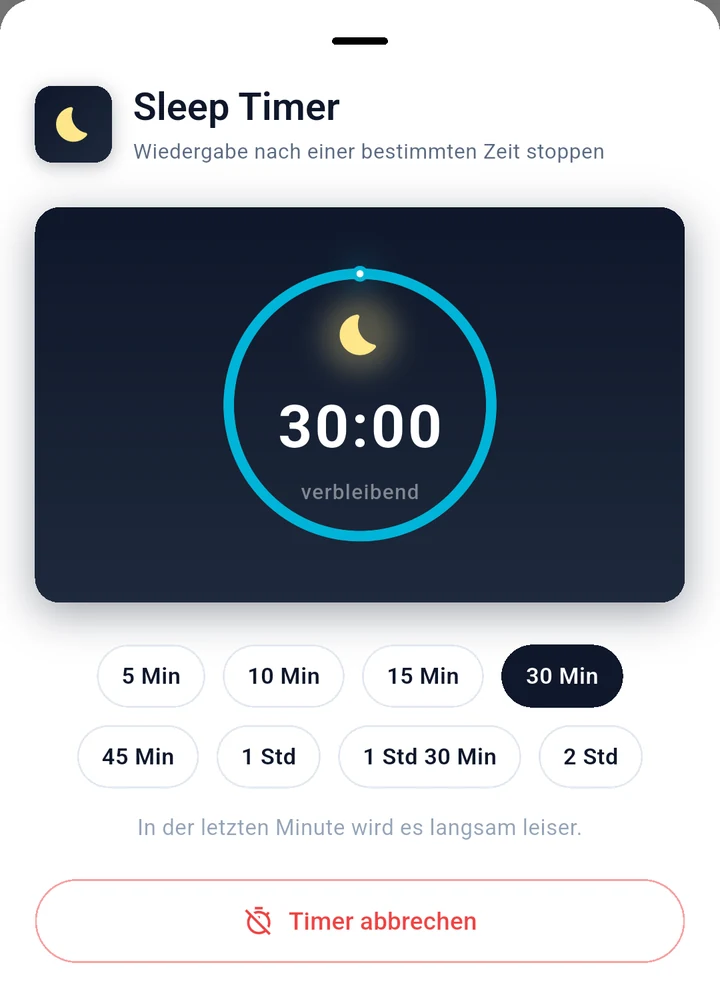
Tap the moon icon in the player or open “Sleep Timer” in the settings. Then choose when playback should end:
- Duration: 5, 10, 15, 30, 45 or 60 minutes, or 1.5 or 2 hours.
- Gentle ending: During the last minute, the volume slowly fades out, then playback stops.
- For podcasts: If an episode is playing, you can also choose “End of episode”.
- Keep an eye on the remaining time: The moon icon in the player shows how long the timer has left to run.
Calm stations for falling asleep
Start a station by pressing the play button on its logo.






- Ambient Sleeping Pill: Calls itself an internet radio for sleep, meditation and relaxation.
- SomaFM Space Station Soma: SomaFM is funded by its listeners and, according to its own statement, runs without advertising.
- Your Classical Relax: Relaxing classical music from the USA.
- Klassik Radio Meditation: The meditation channel of Klassik Radio.
You can find more in our collection Meditation & Relaxation.
Does music help you fall asleep?
Possibly. A Cochrane review analysed 13 studies with 1,007 adults suffering from insomnia. Listening to music every day for 25 to 60 minutes probably significantly improved their self-rated sleep quality. The possible effect on how quickly they fell asleep and on sleep duration was small. The studies used recorded music, not radio with presenters or advertising.
This is not medical advice. If you have trouble sleeping for an extended period, talk to your doctor.
Good to know
- Free: The alarm clock and sleep timer don’t require Premium.
- Phone and tablet: The alarm clock is available on phones and tablets.
- Data usage: At 128 kbit/s, half an hour uses about 29 MB.
Sources
- ARD Media: Audioversum 2026 (PDF), page 8, population aged 14 and over, Monday to Sunday. We read the value from the chart.
- Cochrane: Music for insomnia in adults, data as of 31.12.2021
- Providers: Ambient Sleeping Pill, SomaFM, YourClassical